 Screenpresso


インストール
How do I deploy Screenpresso?ヘルプセンター
ヘルプセンター
Diagnostics
Screenpresso includes built-in installation diagnostics to help you understand the precedence rules that apply to licensing, settings, and more.
Open Screenpresso's settings > Support and click the "Install diagnostics..." button.
Installation
MSIX (recommended)
Screenpresso should be installed using our msixbundle file. Choose one of the following options:
Use the App Installer channel for the latest stable version. Automatic updates are managed by Windows.
Use the App Installer channel for the latest preview/beta version. Automatic updates are managed by Windows.
Use a specific
msixbundle file to install a specific version without automatic updates. Visit the download page for the latest version, or the releases page for download links in each version's release notes.The Windows-managed package installation directory is normally under %ProgramFiles%\WindowsApps\<PackageFullName>.
To get the Screenpresso installation directory, use this PowerShell command:
(Get-AppxPackage *Learnpulse*).InstallLocationMicrosoft Store
Screenpresso can be installed from the Microsoft Store.
The installation directory for the Microsoft Store app is normally under %ProgramFiles%\WindowsApps\<PackageFullName> (the same as for the MSIX bundle, since both use the same package).
To get the Screenpresso installation directory, use this PowerShell command:
(Get-AppxPackage *Learnpulse*).InstallLocationLegacy
MSI
Microsoft is moving toward MSIX, and some Microsoft APIs are only available through an MSIX manifest. Our MSIX bundle also supports ARM processors. For these reasons, we are transitioning to MSIX. However, to help customers with this transition, we will continue to provide an MSI installer for a couple more releases.
If you need an MSI installer, go to the "More options" section on our download page.
The installation directory is the standard machine-wide installation directory (ALLUSERS=1):
%ProgramFiles%\Learnpulse\Screenpresso
EXE
Our .exe file is a portable version that also includes a built-in installer. It is convenient, but it can trigger security warnings. For this reason, we may discontinue this installation method.
If you need an .exe file, go to the "More options" section on our download page.
Use the UI or run Screenpresso.exe deploy --help to view the options for the built-in installer.
Note that the executable does not include certain binaries, such as FFmpeg or ADB. It downloads them when requested by the user.
Portable / run without installation: wherever the user placed
Screenpresso.exe on a Portable storage, when the executable directory is writable, if the executable is on a USB drive, or its path contains the case-sensitive string PortableApps. The run --portablemode command-line option also enables portable mode.EXE installed for the current user:
%LOCALAPPDATA%\Learnpulse\ScreenpressoEXE installed for all users:
%ProgramFiles%\Learnpulse\Screenpresso (installation in Program Files requires appropriate administrator permissions).Additional downloads and runtime files
The following directory is used for on-the-fly downloads:
%LocalAppData%\Learnpulse\Screenpresso\
License deployment
Important notes
When Screenpresso PRO is purchased for multiple users, a single activation key (containing multiple licenses) is provided by email.
Per-unit licenses can be deployed, but each user may need to confirm activation on first launch. This is not required for an enterprise license.
The activation process may require an internet connection for per-unit licenses.
Manual deployment
The license key can be entered manually. Refer to this guide.
Automatic deployment
Create a text file named activation.lic containing the key you received by email, as shown below:
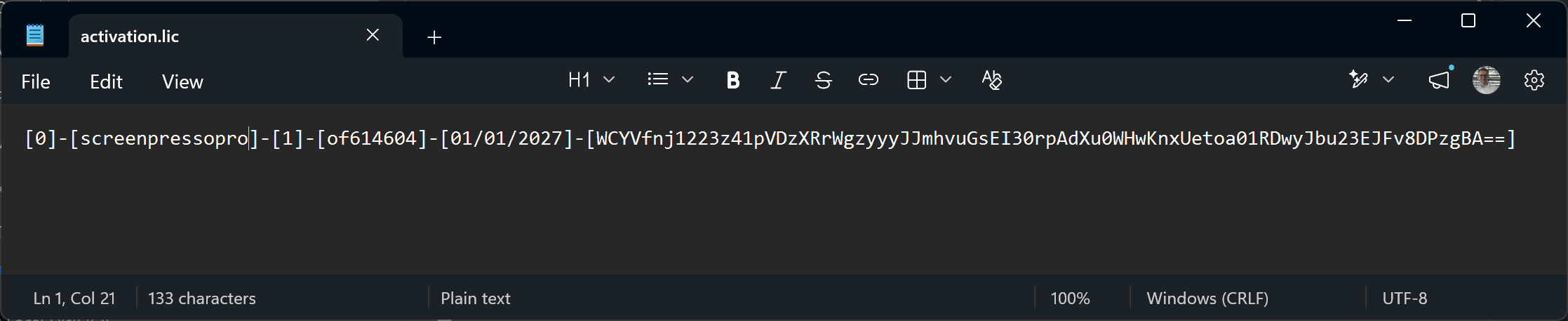
Screenpresso searches for activation.lic in the following order and uses the first file it finds:
%ProgramData%\Screenpresso\activation.lic%ProgramData%\Learnpulse\Screenpresso\activation.lic%ProgramFiles%\Learnpulse\Screenpresso\activation.lic%ExecutableDir%\activation.licSettings
Screenpresso stores user preferences in a settings.xml file.
Location
The file is stored at %LocalAppData%\Learnpulse\Screenpresso\settings.xml if Policies.NoRoaming is enabled, or at %AppData%\Learnpulse\Screenpresso\settings.xml otherwise.
If the settings file cannot be written, the fallback location %Temp%\Learnpulse\Screenpresso\settings.xml is used.
Screenpresso reads whichever was saved most recently: the settings file or the fallback file, even when the settings file cannot be written.
Values read from the fallback file are saved back to the settings file once it is writable; the fallback file is then deleted.
If neither file exists, Screenpresso uses the settings.xml file from the other NoRoaming location, if available, before trying a template.
Settings template file
If Screenpresso cannot find the user's settings.xml file, it tries to use a template, which is copied to the user's directory. The template file is never overwritten.
Screenpresso checks the following locations in order and uses the first template it finds, falling back to its built-in defaults if none is found:
%ProgramData%\Screenpresso\settings.xml%ProgramData%\Learnpulse\Screenpresso\settings.xml%ProgramFiles%\Learnpulse\Screenpresso\settings.xml%ExecutableDir%\settings.xmlScreenpresso's built-in defaults
Policies
Administrators can use the Windows Registry to override certain settings and disable specific Screenpresso features.
Store all policy values under the following registry key:
HKEY_LOCAL_MACHINE\SOFTWARE\LearnPulse\Screenpresso\PoliciesUnless otherwise noted, each policy is a DWORD value. Set it to 1 to apply the restriction described below.
NoRoaming
Save all files in the local AppData folder instead of the roaming AppData folder.
NoUpdate
Disable automatic updates for EXE and MSI installations only.
NoUpdateBeta
Disable the "beta" update channel option for EXE and MSI installations only.
NoStats
Disable telemetry and prevent users from enabling it in the settings.
NoSharing
Disable all sharing features.
Sharings
Specify which sharing features are available to users. This optional String value contains a semicolon-separated list of sharing services.
Example:
Gmail;EMail;Ftp;YouTube;Dropbox;Imgur;ScreenpressoCloud;Drive;S3;FileCopy;OneDrive;LinearNoGoogleTranslate
Disable Google Translate.
NoAI
Disable all cloud-based artificial intelligence features.
NoVideo
Disable video capture. When this policy is enabled, you do not need to provide ffmpeg.exe.
NoDevice
Disable capture from mobile devices, including Android Center.
NoOcr
Disable optical character recognition (OCR).
NoBrowserExtension
Disable integration with the Screenpresso Google Chrome extension.
SupportEmail
Replace the Screenpresso support email address with your organization’s IT support address. Use a String value, for example:
"SupportEmail"="it@yourcompany.com"NoErrorReportingEmail
Hide the Send email button when a crash occurs.
NoLicenseManagement
Hide the License management menu item.
NoFirstTimeMessages
Disable all tips and tricks. This is useful in environments where the settings.xml file is deleted at every restart.
NoSettings
Prevent users from changing settings. This allows an organization to enforce a fixed configuration.
NoImagePack
Disable support for the extended image formats WebP and JPEG XL.
Important
Policies require Screenpresso PRO/ENTERPRISE licenses. If policies are not applied, open the About dialog, verify that Screenpresso is activated as PRO, and refer to the Diagnostics section.
